
Your Own VPN with Amnezia Hosting: Step-by-Step Tutorial for Russia
 By Irena Domingo
Updated on
In This Article
To run your own VPN with Amnezia you need two things: a rented server, from about $5 a month, and the free AmneziaVPN app. You don’t need to be good with computers: the provider emails you three details (IP address, username and password), you paste them into the app and it sets everything up on its own in a few minutes.
This is step 8 of my guide to planning a trip to Russia in 10 steps, where you’ll find everything else in order.
You can rent the server anywhere you like, but in this tutorial I follow a single example from start to finish: Amnezia Hosting, Amnezia’s own server service. It’s the one their official guide recommends, the simplest if you’re not technical, and the one giving the fewest problems with the blocks in Russia right now.
In short
- Cost: from $5.25 a month. The app is free.
- Time: about 20 minutes, once.
- When: at home, before you travel. From inside Russia it’s much harder.
- Who it’s for: people who travel often, live there for a while or want to leave a VPN for their family in Russia.
What your own VPN is and when it’s worth it
With a regular VPN you connect to a company’s servers, shared by thousands of people. With your own VPN you connect to a server you rent yourself, used only by you and whoever you choose. That’s why it often works when commercial VPNs fail: your IP address is yours alone and isn’t on the block lists of well-known VPNs.
A reader told me about it in my October 2026 survey: her partner lives in Russia and uses exactly this, with his own server for about €5 a month. She asked me for this tutorial because, in her words, it’s the option that works best.
My advice: for a trip of a couple of weeks, Amnezia Premium is easier, because there’s nothing to set up. Your own server pays off if you go often, live there for a while or want to leave your family in Russia with a VPN for months without paying for several subscriptions. It also works as a second VPN: if one goes down, you have the other.
Why I use Amnezia Hosting in this example
Renting the server is where most people get stuck. I’ve read weeks of messages in Amnezia’s Telegram chat, where thousands of Russians help each other with their servers, and the complaints are nearly always the same: servers from big providers (Hetzner, OVH, DigitalOcean…) whose IP is already blocked in Russia the moment you rent them, providers that won’t change a blocked IP or charge you for it, and plans that aren’t compatible with the app. Amnezia Hosting solves all three:
- The servers come ready for the AmneziaVPN app. No technical requirements to check.
- If your carrier blocks the IP, they change it for free. Just message support.
- You can pay with any card, and if within the first 72 hours you find it doesn’t work for you, they refund you.
Prefer another provider?
The steps in the app are exactly the same. Just make sure the server is outside Russia and runs Ubuntu 22.04 or 24.04, with an x86-64 processor (not ARM), KVM virtualization, a public IPv4 address and at least 1 GB of RAM. If it doesn’t, the installation fails. Avoid Debian 12: a reader got errors during installation with it. And before paying for several months, check that they’ll change the IP for free when it gets blocked.
The big providers aren’t always a problem, though: that same reader uses Hetzner (Germany) with no issues, for a little over €5 per server per month, billed at the end of the month. OVHcloud (France) is another option.
Watch out for a common trap: some providers, like Hetzner, make you change the root password the first time you log in, and until you do, the app can’t install the VPN. So log in to the server once before step 4. On Windows, open Command Prompt (cmd) and type ssh root@YOUR_SERVER_IP; on a Mac, do the same in Terminal. Enter the password from the email, then the new one twice. Nothing appears on screen while you type: that’s normal, and it’s better to type the password than to paste it. Choose a new password with only letters and numbers, no special characters: if you ever use the provider’s web console, it assumes a US keyboard layout and symbols may not be where you expect. And write it down, because it’s the one you’ll enter in the app.
Step 1: rent the server from Amnezia Hosting
For now, all their servers are in the Netherlands. For a personal or family VPN, the two cheapest plans are enough. If it’s just for you and your partner, Start is plenty; if you’ll be handing out keys to the whole family, go for Basic:
| Plan | Price per month | What’s included | Who it’s for |
|---|---|---|---|
| Start | $5.25 | 1 GB RAM, up to 100 Mbps, unlimited traffic | You and up to 5 people |
| Basic | $6.15 | 2 GB RAM, up to 100 Mbps, unlimited traffic | Family, up to 10 people |
- Go to Amnezia Hosting.
- Choose the location (Netherlands), the billing period and the plan, and click “Order”. I’d start with one month: you can change the period later through support.
- Create your account with your email and pay by card. Once the server is active, you’ll get a confirmation email.
Step 2: keep the three details from the email
That email contains three details: the server’s IP address, the username (root) and a password. You’ll also find them in your client area, my.amnezia.host. Save them: they’re all you’ll need.
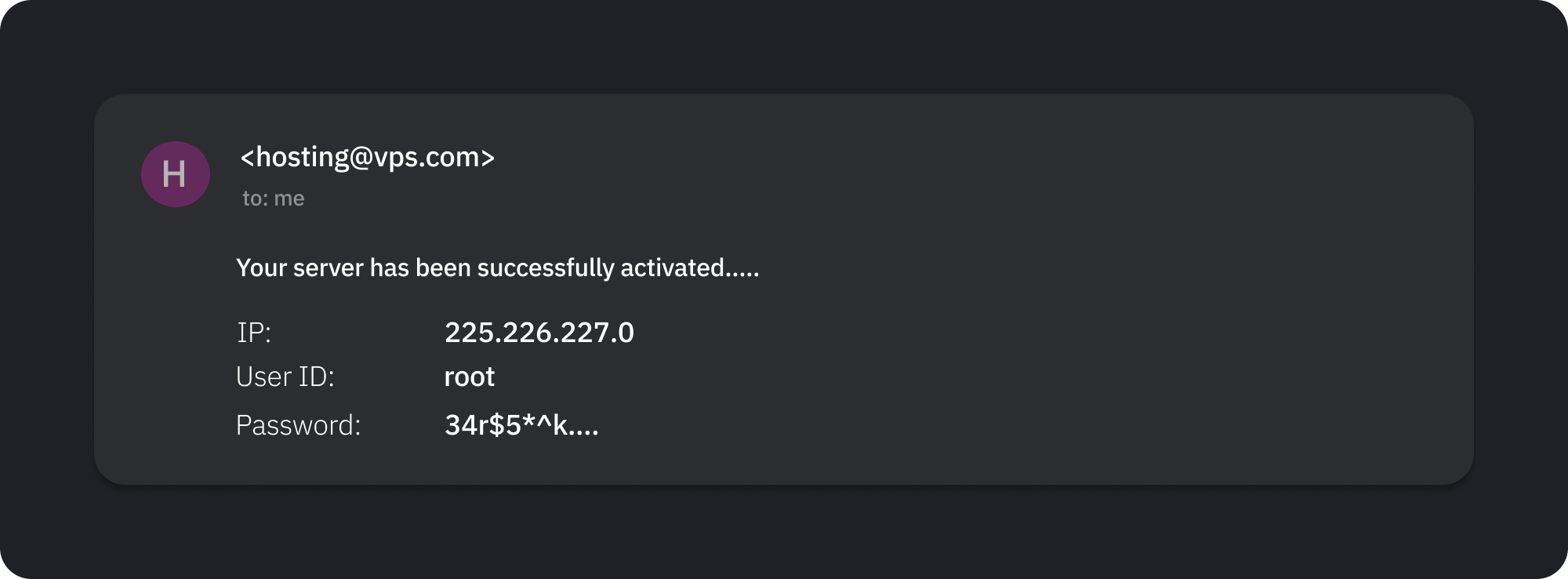
A tip: copy the password with the copy button or select it carefully. An extra space at the beginning or end is the most common mistake in the next step.
Step 3: install the AmneziaVPN app
Download it from Amnezia’s official downloads page, which has versions for iPhone, Android, Windows, Mac and Linux. It’s free, open source and the same app used for Amnezia Premium and Amnezia Free. Make sure you have version 5 or later: older versions don’t support the latest version of the AmneziaWG protocol. If you already have it, update it to the latest version before you start.
Do it at home, before you travel: it isn’t in the Russian App Store, and from Russia the Amnezia website doesn’t always load. You can set up the server from your phone or your computer; on a computer it’s easier to copy and paste the details, and then you move the connection to your phone as I explain in the sharing section.
The screenshots in this tutorial are from the English version of the app, so the button names you see here are exactly the ones on your screen.
Step 4: connect the app to your server
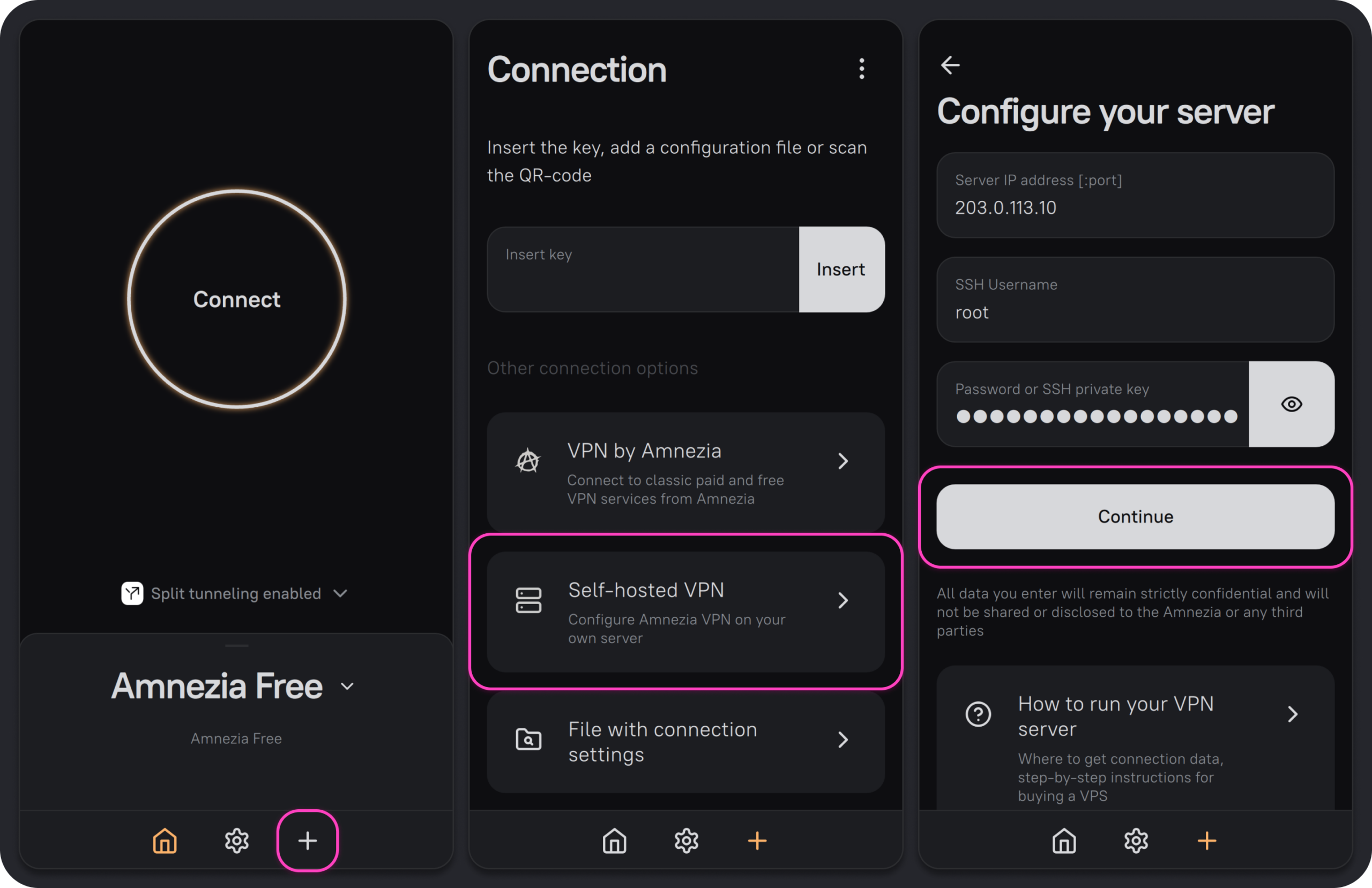
- Open AmneziaVPN and tap the “+” in the bottom bar.
- Under “Other connection options”, choose “Self-hosted VPN”, the option for your own server.
- On the “Configure your server” screen, fill in the three details from the email: the IP in “Server IP address”, root in “SSH Username” and the password in “Password or SSH private key”. Tap “Continue”.
Step 5: let the app install everything
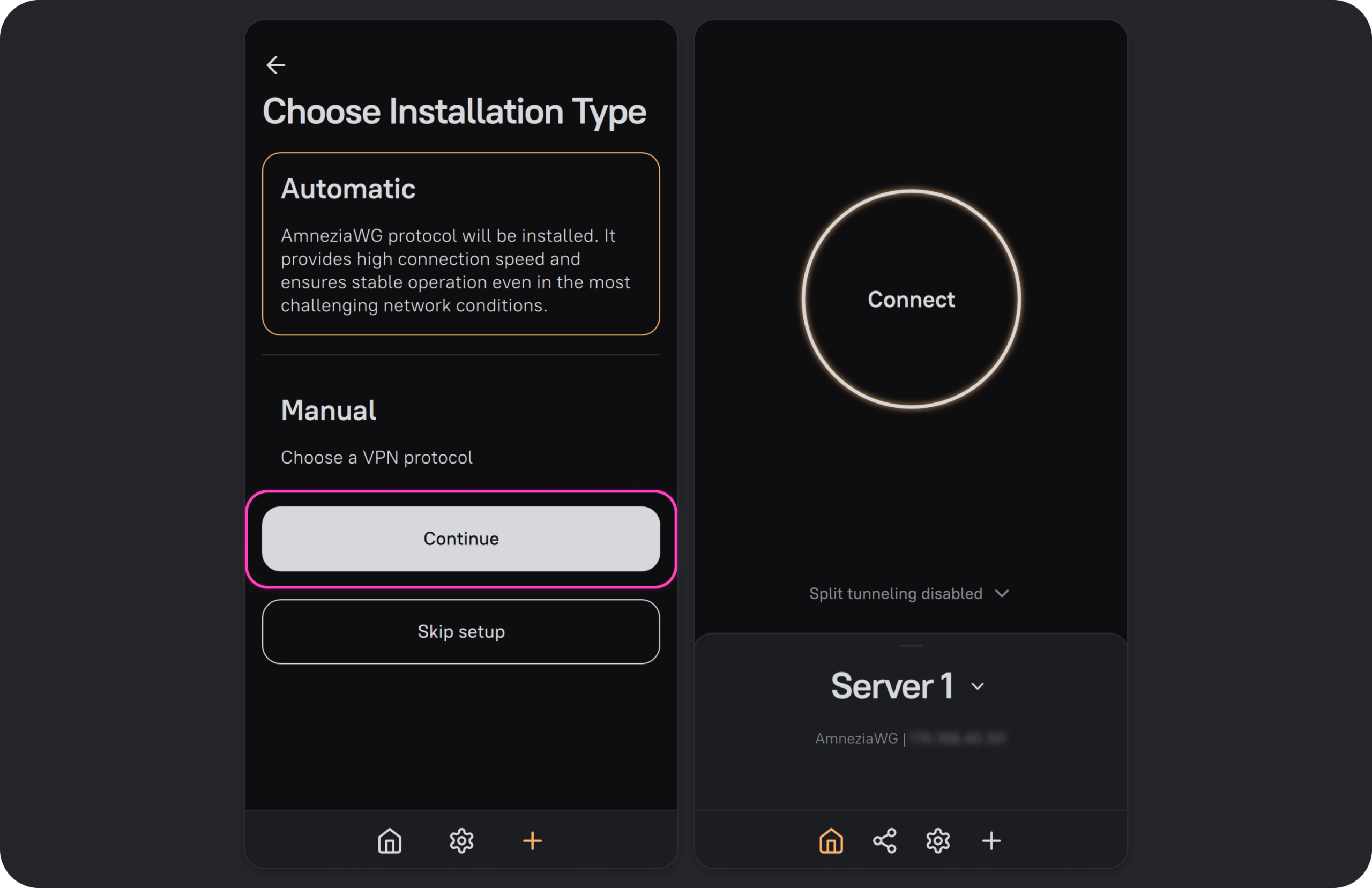
The app asks for the installation type (“Choose Installation Type”). Leave “Automatic” selected, which installs the AmneziaWG protocol, the fastest one, and tap “Continue”. Don’t tap “Skip setup”: that creates an empty connection without installing anything.
Wait a few minutes. The app logs into the server, installs everything and creates the connection, without you typing a single command. When it’s done, you’ll see your server (“Server 1”) on the main screen. Tap the big circle, “Connect”, and you’re browsing through your own VPN.
🔑 That first connection is the master key
The connection you’ve just created gives full access to the server: whoever has it can manage or delete it. Don’t give it to anyone. For your second phone, your laptop or your family, create regular keys from the sharing section, which I explain below.
Step 6: change the AmneziaWG port
It’s a two-minute tweak that Amnezia itself recommends. The app picks a random port, often a high number, and some carriers block this kind of traffic on high ports. Before you start, disconnect from the VPN by tapping the big circle: if you change the port while connected through that same VPN, the connection to the server drops and the change fails.
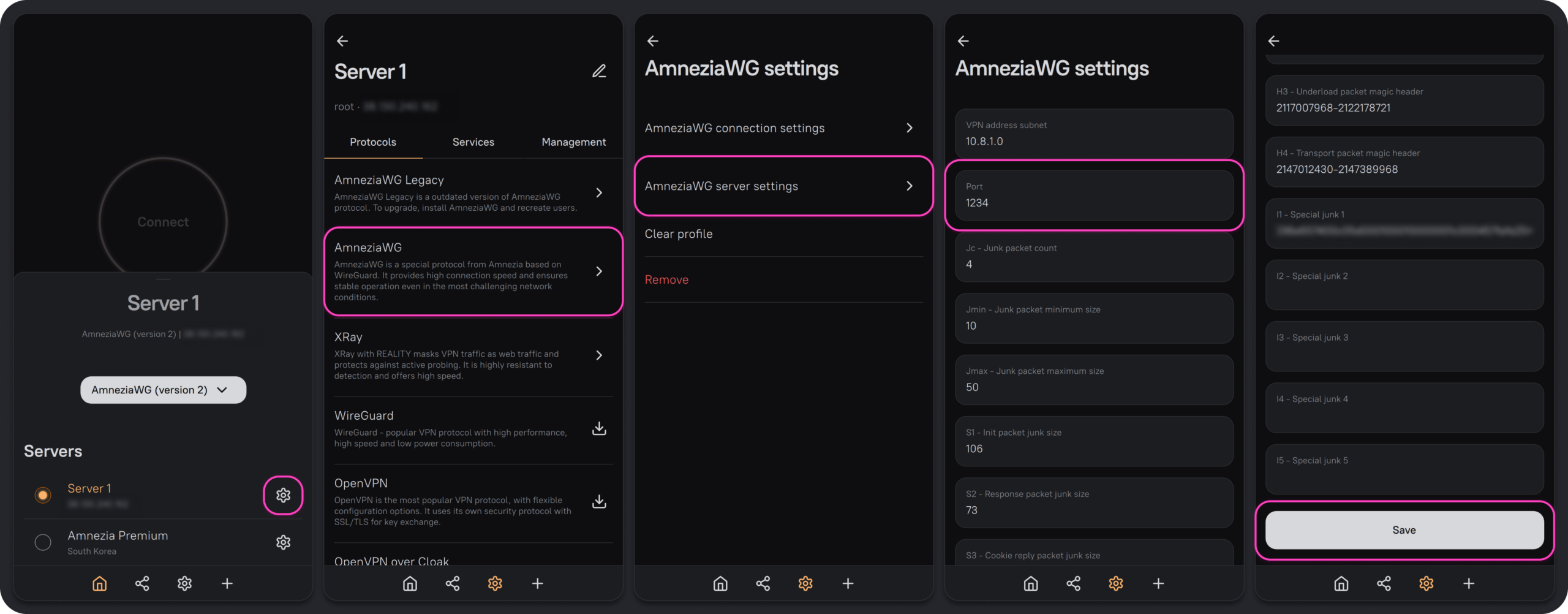
- On the main screen, open the server list and tap the ⚙️ icon next to your server.
- In the “Protocols” tab, tap “AmneziaWG”.
- Open “AmneziaWG server settings”.
- Change the “Port” to a number up to 9999, for example 585 or 1234. Leave the other fields as they are.
- Scroll to the bottom and tap “Save”.
Step 7: test it before you leave
- Connect and search “what is my IP” in your browser: it should show your server’s IP address. The country may show as the Netherlands or somewhere else, such as the United Arab Emirates: these sites guess the country from databases that are often wrong for data-center IPs, so don’t worry about it.
- If you know someone in Russia, send them a key (I explain how just below) and have them test it from there, on mobile data and on wifi. It’s the only test that really counts.
- Save a backup of the configuration from the app’s settings. If you lose your phone, you won’t have to start from scratch.
How to share it with your family or partner in Russia
This is the big advantage of your own server: you give access to whoever you want, at no extra cost, and take it away whenever you want. Each person gets their own key, which only lets them connect to the VPN, not manage the server. Amnezia Hosting has tested its servers with up to 10 keys at once.
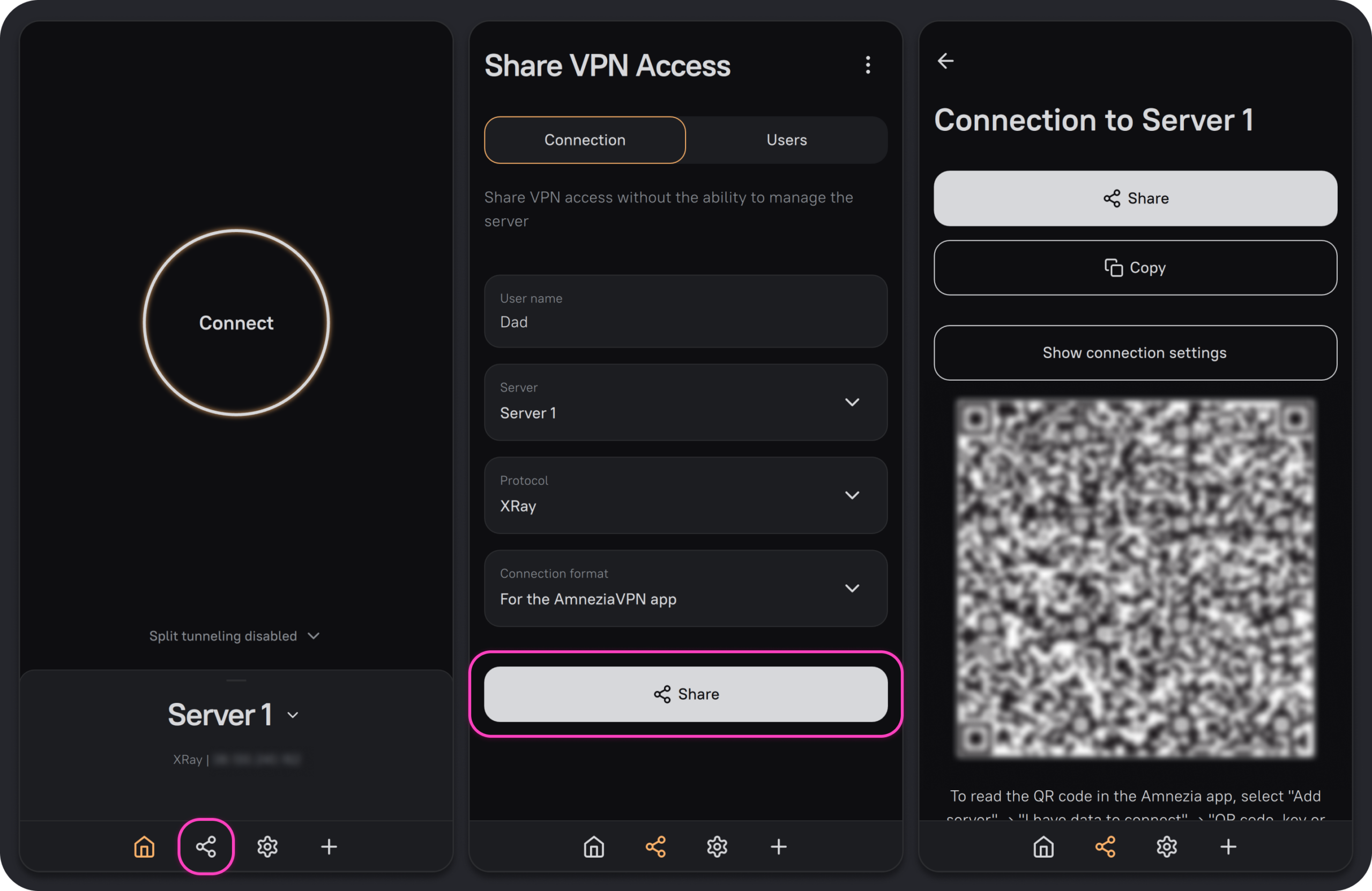
- In the app, tap the share icon in the bottom bar, the one with three connected dots, to the left of the ⚙️.
- On the “Share VPN Access” screen, type a name in “User name” (for example, “Mum”), pick your server under “Server” and the protocol under “Protocol”. Under “Connection format” leave “For the AmneziaVPN app”. Tap “Share”.
- The connection opens, ready to send. With “Share” you send it via WhatsApp, Telegram or email; with “Copy” you copy the key (a long text starting with vpn://); and if the person is with you, they can scan the QR code. If you send it by message, they need to copy all of it, without cutting anything off.
- Your relative installs AmneziaVPN, taps the “+”, pastes the key into “Insert key”, taps “Insert” and then “Connect”.
To remove someone’s access, go back to the sharing screen, open the “Users” tab, choose the server and protocol, tap their name and press “Revoke” and then “Continue”. And have your relative install the app while they still have a connection that works, or do it yourself when you visit: inside Russia, downloading it can be a struggle.
How to keep your server from getting blocked
One piece of advice keeps coming up in the Amnezia chat that hardly anyone mentions: don’t open Russian apps and websites with the VPN on. Russian banks, Gosuslugi, Ozon, Wildberries, Yandex… many of them detect that you’re coming from a foreign data-center IP, and those visits help land your server on the block list. On top of that, several of these apps simply don’t work over a VPN.
- The simplest way: turn the VPN off when you use a Russian app and back on afterwards.
- The most convenient: use “Split tunneling”, just below the connect button. It lets you choose which apps or sites go through the VPN and which don’t, so WhatsApp and Instagram go through your server and the Russian bank goes through the normal connection.
- Explain it to your family when you give them the key: if just one person opens Ozon with the VPN on every day, the server gets burned for everyone.
If it won’t connect or stops working
No system is foolproof in Russia. Go through this list, quickest fix first:
- Does it only fail on mobile data? Try wifi. In many regions, especially during drone alerts, carriers switch to “whitelist” mode and only let approved Russian services through (Yandex, VK, Gosuslugi, some banks). Then no self-hosted VPN works on mobile data, whatever the protocol. Hotel wifi usually keeps working.
- Turn on airplane mode for ten seconds and reconnect. It sounds silly, but one reader does it every time the connection hangs, and it works for him.
- Update the app. Amnezia releases new versions every few weeks to keep up with the blocks.
- Switch to XRay if AmneziaWG keeps spinning without connecting: your carrier is throttling that kind of traffic. I explain how just below.
- Ask for a new IP from Amnezia Hosting support if it fails on every network and every protocol: your server’s address has probably been blocked. The change is free.
Plan B: the XRay protocol
AmneziaWG is the fastest and easy on the battery, but some Russian networks slow it down or cut it off. XRay (you’ll also see it called VLESS or Reality) is a bit slower, but it disguises itself as a visit to an ordinary website and almost always gets through. Amnezia Hosting’s Start and Basic plans are designed for a single protocol, so if AmneziaWG doesn’t work for you, you swap it for XRay:
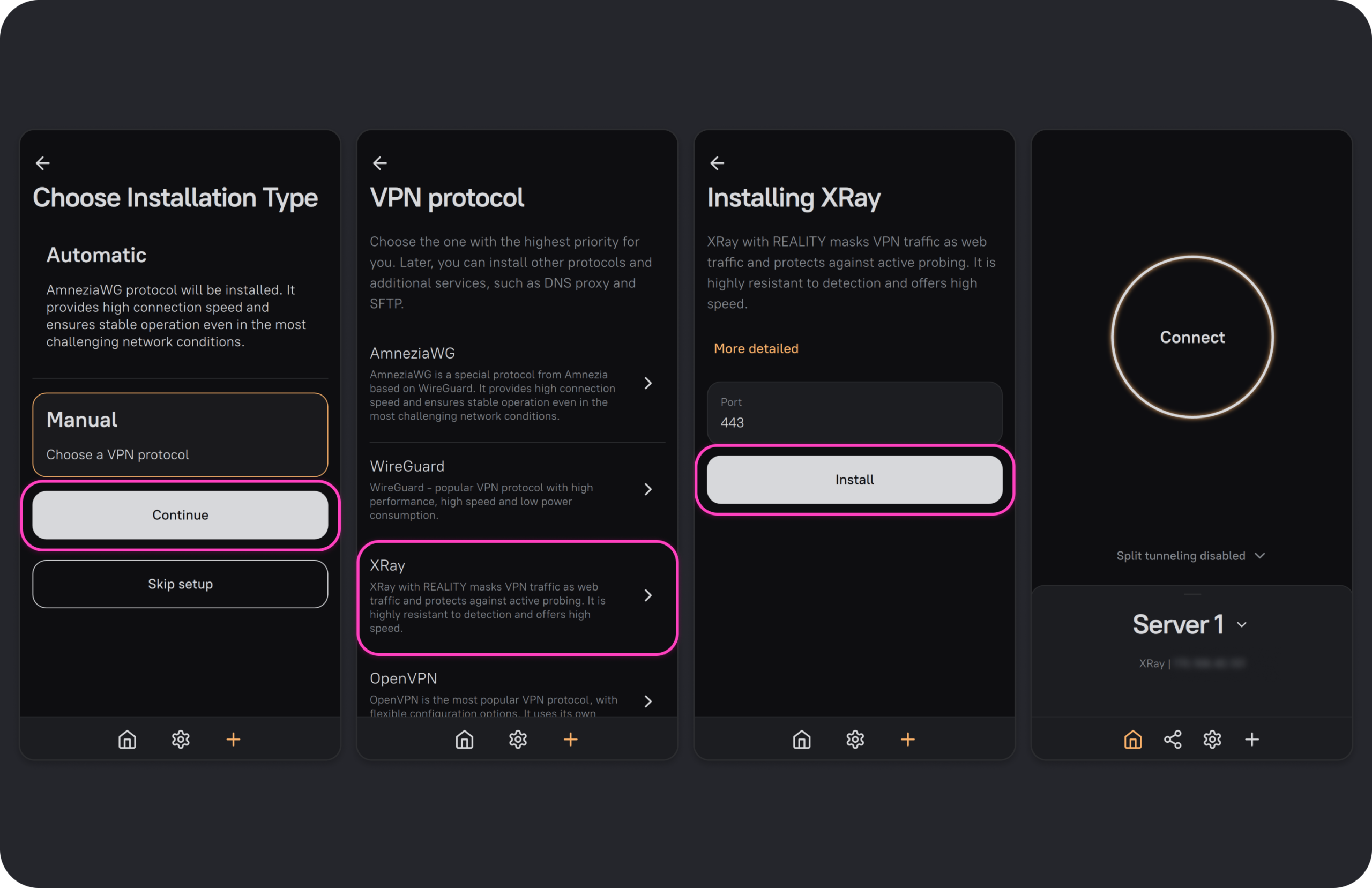
- Tap ⚙️ next to your server, open “AmneziaWG” and delete it with “Remove”.
- In the same “Protocols” tab, tap “XRay”.
- Leave the “Port” at 443 and tap “Install”. It takes less than a minute.
- Go back to the main screen and tap “Connect”. If port 443 doesn’t get through, try 8443.
If you prefer, you can also start with XRay right away: in step 5, instead of “Automatic”, choose “Manual”, then “XRay”, leave port 443 and tap “Install”.
If your server is with another provider and has at least 2 GB of RAM, you can also do what one reader does: keep both protocols installed at the same time, AmneziaWG and XRay on port 8443. If one goes down, you switch to the other straight away and fix the first one at your leisure. To do this, don’t remove AmneziaWG: in the “Protocols” tab, tap “XRay”, set the port to 8443 and tap “Install”. Amnezia Hosting’s Start and Basic plans, on the other hand, are designed for a single protocol.
If the app shows an error during installation
- Error 305: the app can’t reach the server. Check the IP, username and password (the server password from the email, not your Amnezia Hosting account password). If they’re right, check on my.amnezia.host that the server is active.
- Errors starting with 30 (300, 301…): the app can’t log into the server. If you have another VPN on while installing, turn it off and try again.
- Errors starting with 20 (203, 205…): the installation stopped halfway. Wait a few minutes and run it again; if it happens again, contact support.
Amnezia Hosting support is on Telegram at @amnezia_hosting_bot, by email at support@amnezia.host or via a ticket in your client area. They also have a knowledge base, wiki.amnezia.host, in English and Russian.
What you should know about Amnezia Hosting
- It doesn’t renew automatically. Five days before the period ends they email you an invoice, and you have seven days to pay it. If you don’t, the server is suspended and, seven days later, deleted. If you’re leaving the VPN with your family, set a calendar reminder: if the server is deleted, every key you handed out stops working.
- 72-hour refund. With your first server, if within 72 hours of activation you find it doesn’t suit you, you can ask for a refund, minus at most 5% in fees. It only applies once.
- It isn’t foolproof either. Like any provider, it has bad days: in October 2026 some users had outages and slow evenings while they fixed a problem at their data center. That’s why I keep telling you to carry a second VPN.
If you’d rather keep it simple: Amnezia Premium
If after reading all this you’d rather not manage a server, Amnezia Premium is the same technology and the same app, but they take care of everything: if a server gets blocked, they replace it. I explain how to get it ready in Amnezia VPN for Russia, and how to choose between all the options in my guide to VPNs in Russia. And if Telegram is your only worry, there are more options in Telegram in Russia.
What I don’t recommend is buying keys or “private servers” from sellers on Telegram claiming to be Amnezia: there are lots of fake bots. A real private server is one you rent yourself, in your own name. And if you’ve heard about Happ and the keys people buy on Telegram, I explain what they are and how to use them without getting scammed in Happ VPN in Russia.
Frequently asked questions
How much does your own VPN with Amnezia cost?
The AmneziaVPN app is free. You only pay for the server: at Amnezia Hosting, from $5.25 a month on the Start plan, which covers you and up to five people.
Do I need to be good with computers to set it up?
No. You just copy three details you receive by email, the IP, the username and the password, and the AmneziaVPN app installs everything on its own in a few minutes, without typing any commands.
Can I use another provider instead of Amnezia Hosting?
Yes. The steps in the app are the same. The server must be outside Russia and run Ubuntu 22.04 or 24.04, with an x86-64 processor, KVM virtualization, a public IPv4 address and at least 1 GB of RAM.
Can I share my VPN with my family in Russia?
Yes. From the share icon in the app you create a key for each person, which only lets them connect, and you can revoke it whenever you want.
Does your own VPN work on whitelist days?
Not on mobile data. When carriers only let approved Russian services through, no self-hosted VPN connects, whatever the protocol. Hotel wifi usually keeps working.
What do I do if my server’s address gets blocked?
Ask Amnezia Hosting support for a new IP; they change it for free if your carrier blocks it. In the meantime, it’s worth having a second VPN.
Which protocol should I choose, AmneziaWG or XRay?
Start with AmneziaWG, the fastest. If it won’t connect in Russia, swap it for XRay on port 443, which disguises itself as normal web traffic and almost always gets through.
Is it legal to use your own VPN in Russia?
Using a VPN isn’t banned for private individuals. What is penalized is advertising them and, since September 2025, knowingly searching for content deemed extremist, with or without a VPN.
Do you have your own server and have you used it in Russia recently? Tell me in this form which protocol worked for you and on which carrier. I use the answers to keep this guide up to date. It takes two minutes.
In This Article
Was this useful? I'll tell you when something changes in Russia
One short email a month with what has changed for travellers (visas, payments, border crossings, apps), based on what readers report to me from Russia. More than 4,000 of us already. No spam: if you ever lose interest, unsubscribing is one click.
Irena DomingoAbout Me
I was born in Russia. I grew up between two worlds: my father was Russian, my mother Spanish — a descendant of the "Children of Russia", the Basque children evacuated to the USSR during the Spanish Civil War. I've worked as a translator, interpreter and Russian teacher for over 30 years, and since 2013 I've been writing this blog to help travellers discover Russia with practical, always up-to-date information. Author of the Russiable Guide. If this blog has helped you plan your trip, you can buy me a coffee ❤️.
 Internet in Russia in 2026: What Works, What Doesn’t and How to Prepare
 What Apps to Use in Russia (When Google, Uber or Booking Don’t Work)
 GPS and maps in Russia: why GPS fails and which apps to use (even offline)